Home > PPT2DVD Pro > PPT2DVD Pro Tutorial > Install & Uninstall
Installing PPT2DVD Pro
To install PPT2DVD Pro on you computer, please download it from the download page. For registered users, the download address of the full version is contained in the registration e-mail. After you download a copy of PPT2DVD onto your computer, you can double click the EXE file to run the installation program.
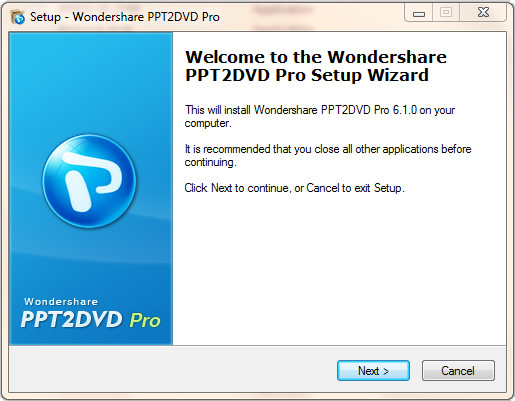
Click Next and follow the guide to finish installation.
When you finish installing PPT2DVD Pro, you see a screen (see figure below) that asks you to install Wondershare sound recorder.
This is an innovative feature of Wondershare PPT2DVD Pro, which helps you retain all sounds in your presentations no matter what formats they are, and guarantees synchronization. If you choose to install Wondershare sound recorder, after clicking [Next] button, you will see the Hardware Installation window, please ignore the warning and click [Continue Anyway]. The installation won’t harm your computer.
Note:
Before you start installing PPT2DVD Pro on your computer, please make sure the PowerPoint program is closed, or the installation will be failed.
Uninstalling PPT2DVD Pro
To remove Wondershare PPT2DVD Pro from your computer, do the following:
1. Click Start > Control Panel > Add or Remove Programs;
2. Find Wondershare PPT2DVD Pro on the list, and then click Remove;
