You can adjust output quality, compatibility, language code and sound setup of your DVD movie in advanced settings.
Output Quality
Select the video quality for the output here. In general, the higher the video quality, the higher the bit rate and the larger the file size, vice versa.
Transport streams. This option is available only when you choose MPEG-2 as the output option, and choose Format under Video Settings as Customize. It specifies the MPEG-2 TS format. This format is specially used in broadcast applications such as DVB and ATSC. For normal DVD players, this option is not recommended.
Compatibility Use progressive scan for MPEG-2/DVD
Both progressive scan and interlaced scan are employed by MPEG-2/DVD, but some old DVD players cannot play the videos encoded with progressive scan. The image quality (depends on your TV set) of progressive scan is more stable and sharper than that of interlaced scan. For most recent DVD players, progressive scan is perfectly supported.
Use MP2 as the audio encoding format
The sound quality of MP2 and AC3 are almost the same, and they are both DVD audio encoding standards, but some European DVD players do not support AC3 audio. If you find the created DVD is not hearable, selecting this option should be a help.
DVD Language
Select the appropriate audio language from the Code list for the created DVD. Please make sure that the language you choose here is accepted and selected as the preferred audio language by the DVD player.
Sound Setup
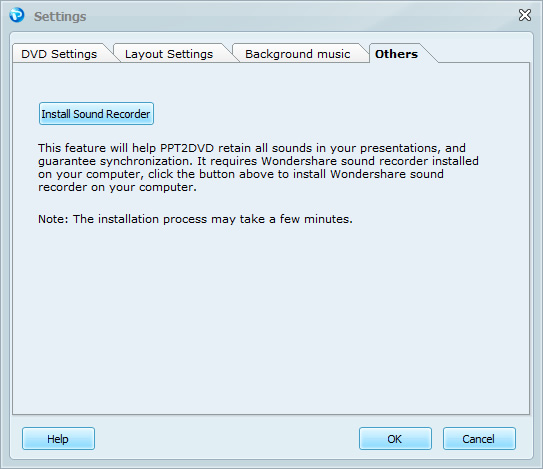
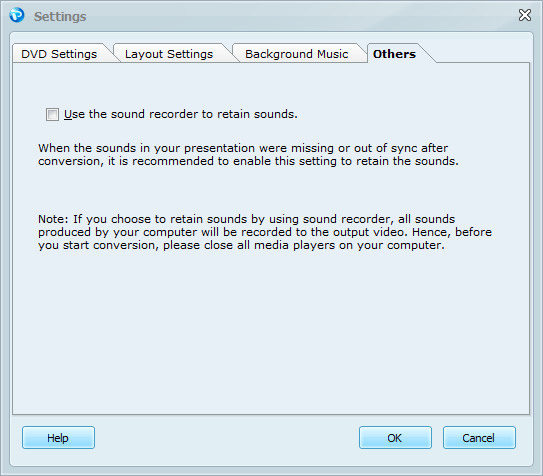
Other than extracting the sound tracks from the original PowerPoint documents and mixing into the generated video, PPT2DVD offers an option to record the sound on the computer as an alternative method to keep the sounds in the presentation. If the sounds in your presentations were lost or out of sync, this setting is recommended.
This feature requires Wondershare sound recorder, which helps you retain all sounds in your presentations no matter what formats they are, and guarantees synchronization.
It should be installed during installing PPT2DVD. If you did not choose to install it or it was not properly installed, click [Install Sound Recorder] button on this tab to install it.
After installation, Use the sound recorder to retain sounds should be available on the tab. Tick it to enable this feature.
Note: If you choose to retain sounds by using sound recorder, all sounds produced by your computer will be recorded to the output video. Hence, it is recommended to close all the media players before conversion.