Home > Community > Learning Center > Online Help > Edit Ending Page.
The Ending Page lets you choose the next step at the end of the show. You can Back to the Last Slide, Replay, Return to Main Menu or Return to Title Menu when reach to the ending page. Click  (it is available only when you enable "Add the Ending Page") to customize the Ending Page. On the preview area, you see the title of the Ending Page at top, below which the options are shown. This setting only takes effect on the PowerPoint file that shows on the "Current file" field on the DVD Menu step. If you want to apply you changes to all the files in the project, just click
  .
.
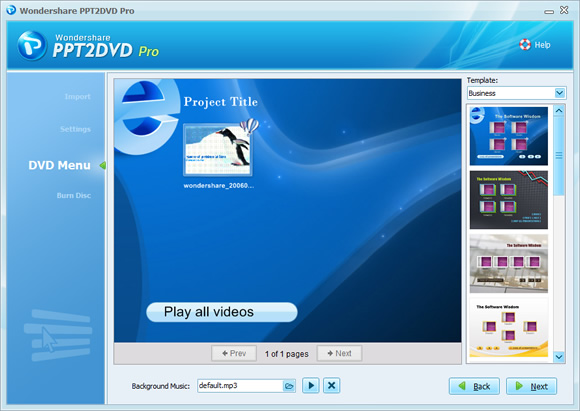
Menu Settings
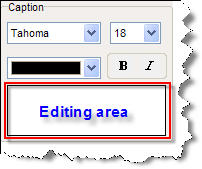
Besides, you can change the font, size, color and style of the caption.
Click Save as Default to
apply current settings as default.
Alignment
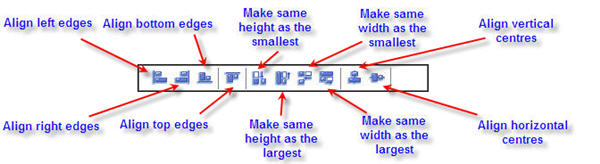
You can use the align function (on the top of the window) to quickly align the menus. Click and hold your left mouse button as drag you to draw a rectangle to enclose the objects you want to align, and then click an align button to align the objects.
Background
 to import an image from your drives as the background. to locate an audio clip from your drives, and then click Open. After you import an audio file, you can click
  to play it, or click
  to remove the current music.